Digital Art Tool Finder
Step 1: What device do you use?
Step 2: What do you want to create?
Step 3: What's your budget preference?
Step 4: Do you need professional features?
Want to make digital art but don’t know where to start? You’re not alone. Thousands of people pick up a tablet or open a computer each month hoping to create something beautiful - only to get lost in a sea of apps, subscriptions, and confusing terms like ‘raster’ and ‘vector.’ The truth? You don’t need the most expensive tool. You need the right one for digital art - and that changes depending on what you want to make.
Start with what you already have
Before you spend money, check what’s already on your device. If you’re on an iPad, you’ve got Procreate - a powerhouse that costs less than a pair of good brushes. If you’re on Windows or Mac, you likely have Paint 3D, Preview, or even Microsoft Paint. These aren’t professional tools, but they’re enough to learn the basics: how pressure sensitivity works, how layers stack, how to undo without panicking.
Try drawing a simple apple with just one brush and one layer. No filters. No fancy presets. Just you, a stylus, and the screen. If you enjoy that, you’re ready for more. If you hate it, maybe digital art isn’t for you - or you just need a different tool.
Procreate: Best for iPad users
Procreate is the go-to for over 10 million artists on iPad. It’s not free, but it’s a one-time $12.99 purchase with no ads, no subscriptions, and no hidden fees. It runs smoothly even on older iPads. Why do so many artists swear by it?
- Over 200 built-in brushes - from watercolor to charcoal to ink pens that mimic real paper texture
- Layer support with blending modes and masks - no need to export to edit parts separately
- Time-lapse recording - automatically saves your entire process to replay later
- Export to PNG, PSD, MP4, or even animated GIFs
It’s not perfect. You can’t use it on Windows or Android. And if you need to work with text or vector shapes, it’s limited. But if you’re drawing illustrations, portraits, or concept art on a tablet, nothing else comes close for the price.
Adobe Photoshop: The industry standard
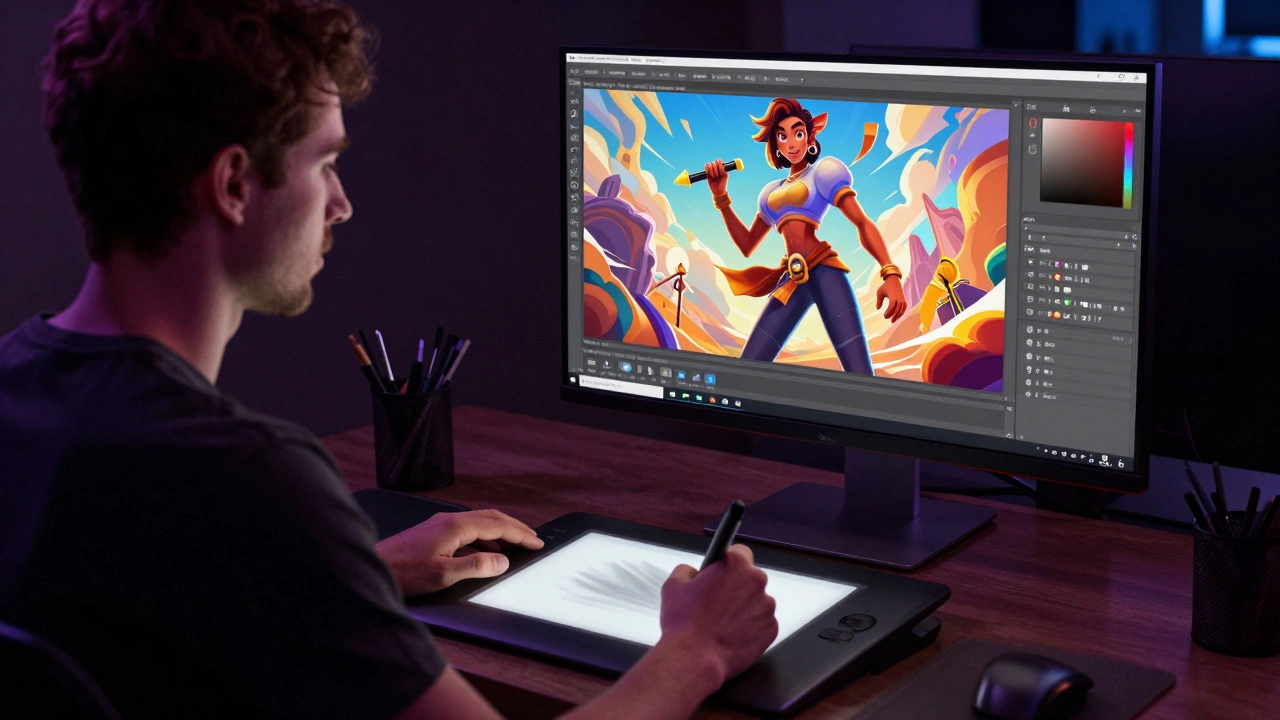
Photoshop isn’t just for photo editing. It’s been the backbone of digital art since the 1990s. If you’ve seen professional illustrations in magazines, game covers, or movie posters, there’s a good chance they were made in Photoshop.
But here’s the catch: it’s only available through Adobe Creative Cloud. That means a monthly fee - $20.99 for Photoshop alone, or $52.99 if you want the full suite. For many, that’s a hard sell. But if you’re serious about selling your art, working with clients, or using other Adobe tools like Illustrator or After Effects, it’s worth it.
Photoshop’s strengths:
- Unmatched brush engine - customize every aspect of pressure, scatter, texture, and opacity
- Full PSD file compatibility - open and edit files from other artists without losing layers
- Integration with Wacom, Huion, and other tablets - pressure and tilt work flawlessly
- Plugins and scripts - add custom tools for auto-coloring, texture generation, or batch processing
It’s heavy. It’s complex. But if you want to work at a professional level - especially in commercial design - Photoshop is still the benchmark.
Krita: Free and powerful for Windows, Mac, Linux
What if you don’t want to pay anything? Meet Krita. It’s completely free, open-source, and runs on Windows, Mac, and Linux. Developed by artists, for artists, it’s built specifically for digital painting - not photo editing.
Here’s what makes Krita stand out:
- Brush engine designed for painting - not just mimicking Photoshop, but improving on it
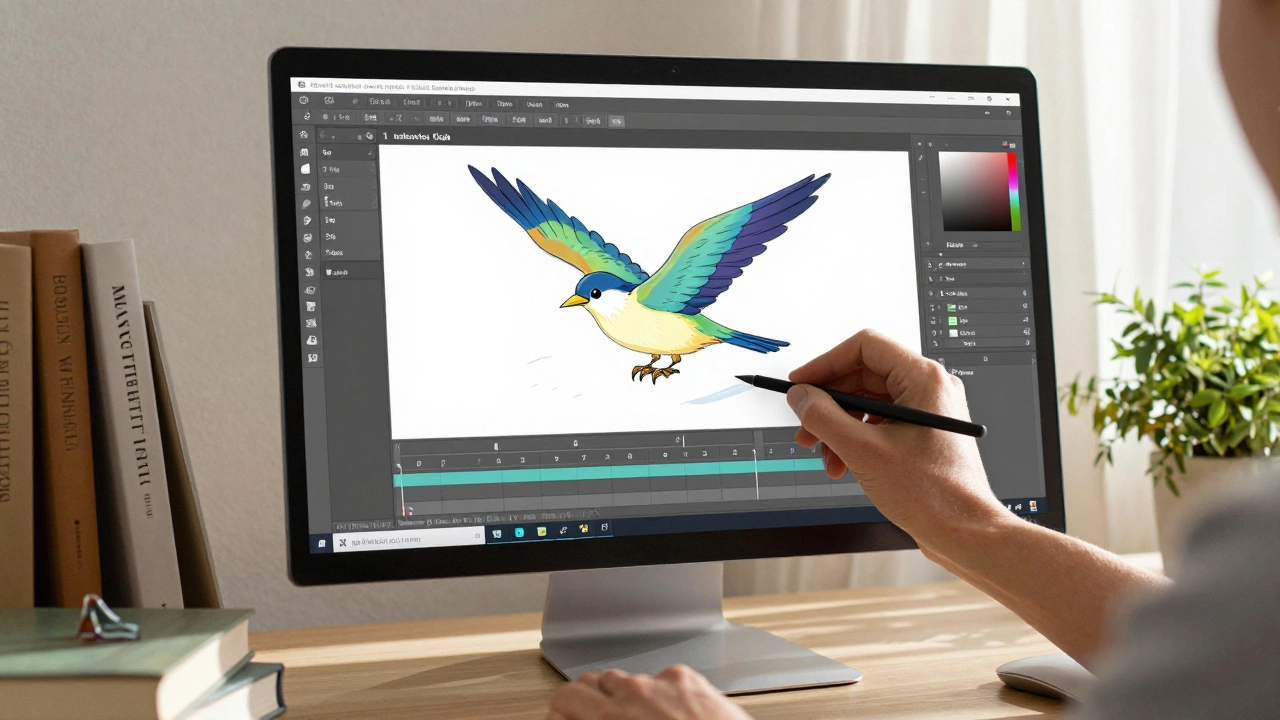
- Animation tools built in - make frame-by-frame cartoons without needing another app
- Color management that actually works - professional-grade CMYK, LAB, and HDR support
- Brush stabilizer - smooths shaky lines without lag, great for beginners
Krita doesn’t have the polish of Procreate or the brand recognition of Photoshop, but it’s the most capable free tool out there. Artists on YouTube, indie game developers, and comic creators use it daily. It’s not beginner-friendly out of the gate - the interface feels cluttered - but once you learn it, you’ll never want to switch.
Other solid options
Not everyone uses an iPad or a desktop. Here are a few other tools that work well for specific needs:
- Clip Studio Paint - Loved by manga and comic artists. Has built-in panel layouts, speech bubble tools, and 3D pose references. One-time purchase ($49.99 for Pro version) or subscription ($3.99/month). Best for illustrators who draw a lot of characters.
- Corel Painter - The most realistic brush simulation on the market. If you want oil paint that looks like it’s on canvas, this is it. Expensive ($599 one-time) and slow on older machines. Only for those chasing ultra-realistic textures.
- Rebelle - Specializes in watercolor, acrylic, and wet-on-wet effects. It simulates real paint bleeding, drying, and pigment saturation. Not for cartooning - perfect for fine art styles.
- FireAlpaca - A lightweight, free alternative for Windows and Mac. Simple interface, decent brushes, and runs on low-end hardware. Good for quick sketches or kids learning to draw.
What you really need to ask yourself
Choosing software isn’t about which one has the most features. It’s about matching your goals:
- Are you drawing for fun? Start with Procreate (iPad) or Krita (PC/Mac). Both are powerful enough to keep you engaged for years.
- Do you want to sell your art? Photoshop or Clip Studio Paint. Clients expect PSD files. You need to deliver professional formats.
- Are you making animations? Krita or Clip Studio Paint. Both have frame-by-frame tools built in.
- Do you hate paying monthly? Avoid Adobe. Go for Procreate, Krita, or Clip Studio Paint’s one-time option.
- Do you draw with a mouse? None of these tools are designed for that. Get a basic Wacom or Huion tablet - $30-$60. You’ll see a huge difference.
Don’t wait for the perfect tool. Start with the one you can get now. A $12.99 app on your iPad is better than a $100/month subscription you never open.
Common mistakes to avoid
Here’s what most beginners do wrong - and how to fix it:
- Buying the most expensive software - You don’t need Photoshop to make a great piece. Many award-winning digital artists use Krita or Procreate.
- Switching tools every month - Learning a new interface takes time. Stick with one for at least 3 months before deciding it’s not right.
- Ignoring brushes - Most programs come with dozens of brushes. Don’t just use the default round brush. Try textured ones. Try ones that simulate dry brush or ink bleed.
- Not using layers - Layers let you fix mistakes without starting over. Separate your sketch, line art, base colors, and shading on different layers. It’s the #1 time-saver.
- Forgetting to save often - Procreate and Krita auto-save. Photoshop doesn’t. Set a habit: Ctrl+S (or Cmd+S) every 5 minutes.
What to do next
Here’s a simple 7-day plan to get started:
- Day 1: Download Krita (free) or get Procreate (if you have an iPad).
- Day 2: Open the app. Find the brush menu. Try 3 different brushes - one thick, one thin, one textured.
- Day 3: Draw a circle. Then draw a face inside it. Don’t worry about it looking good.
- Day 4: Create a new layer. Trace your face with a darker brush. Now you have line art.
- Day 5: Add a new layer below. Fill it with a color. Use the fill tool or paint bucket.
- Day 6: Add shadows with a soft brush. Use darker tones of your base color.
- Day 7: Save it as a PNG. Share it with a friend. That’s your first digital artwork.
You don’t need talent to start. You just need to begin.
Is digital art easier than traditional art?
It’s not easier - it’s different. Digital tools let you undo mistakes, copy layers, and change colors instantly, which helps beginners feel less afraid. But the fundamentals - composition, lighting, perspective - are the same as traditional art. You still need to learn how to see shapes, not just how to click buttons.
Can I use a mouse instead of a drawing tablet?
You can, but it’s frustrating. Drawing with a mouse is like writing with your non-dominant hand. You lose pressure sensitivity, control, and speed. A basic Wacom Intuos or Huion H610 tablet costs under $60 and makes a huge difference. Even a $20 Android tablet with a stylus works better than a mouse.
Do I need to know how to draw traditionally to do digital art?
No - but it helps. Many digital artists start by tracing photos or using reference images. That’s fine. But if you want to create original work, you’ll eventually need to understand anatomy, lighting, and form. Start with simple sketching exercises. Practice daily. You’ll improve faster than you think.
Are free programs good enough for professional work?
Yes. Krita is used by indie game studios and freelance illustrators who earn full-time income. Procreate artists sell prints, NFTs, and commissions regularly. What matters isn’t the price tag - it’s your skill, consistency, and how you present your work. Clients care about the final image, not which app you used.
Which program is best for anime-style art?
Clip Studio Paint is the top choice. It has built-in tools for panel layouts, line smoothing, and character pose references that are perfect for manga and anime styles. Procreate works too, but you’ll need to manually set up templates. Krita can do it, but lacks the specialized features.
Can I use these programs on a Chromebook?
Most desktop programs like Photoshop or Krita won’t run on Chromebooks. But you can use apps like Infinite Painter or Concepts from the Google Play Store. They’re not as powerful, but they’re good for sketching on the go. For serious work, you’ll need a Windows, Mac, or iPad device.
What’s the best way to learn digital art?
Watch tutorials on YouTube - search for ‘digital painting for beginners’ in your chosen app. Then copy what you see. Don’t try to be original yet. Copying builds muscle memory. After 30-50 copies, start making small changes. That’s how you learn. Join online communities like DeviantArt or Reddit’s r/DigitalPainting for feedback.
Final thought
The best digital art tool is the one you use. Not the one you buy. Not the one your favorite artist uses. The one you open every day. Pick one. Stick with it. Draw something - anything - every day for 30 days. You’ll be amazed at how much you improve.