Digital Art App Finder
Answer two simple questions to find the perfect free app for your workflow.
-
Detailed Painting / Illustration Pro FeaturesComplex brushes, layers, non-destructive editing.
-
Comics / Manga / Webtoons Specialized ToolsPanel templates, speech bubbles, screen tones.
-
Quick Sketches / Notes MinimalistFast UI, distraction-free, easy pencil/marker feel.
-
Photo Editing + Design General PurposeCombining photos, text, and basic painting.
You want to start painting on your tablet or laptop, but the first thing you see is a price tag. Adobe Photoshop wants $54 a month. Procreate asks for a one-time fee that stings if you're just testing the waters. Does this mean you have to pay to play? Absolutely not. The open-source community and smart developers have built some incredible free digital art apps that rival paid industry standards. Whether you are sketching characters on an iPad during your commute or painting complex landscapes on a Windows PC, there is a zero-cost tool waiting for you.
The trick isn't finding an app that does everything; it's finding the one that fits your specific workflow. Some excel at line art, others crush it with realistic brushes, and a few are surprisingly good for animation. We tested the top contenders across different devices to help you skip the download fatigue and pick the right canvas today.
What You Need to Know Before Downloading
Before you hit "install," understand what "free" actually means in the software world. It usually falls into three buckets:
- Fully Open Source: Completely free forever, no ads, no hidden costs. Examples include Krita and GIMP.
- Freemium: The core app is free, but premium brushes, cloud storage, or ad removal cost money. ibis Paint X and MediBang Paint live here.
- Free Tier: A limited version of a paid pro app. Sketchbook used to be fully free, but now offers a basic free version with a paid upgrade path.
Your choice depends on your tolerance for ads and your need for advanced features like layer masks or animation timelines. If you hate interruptions, stick to open source. If you want ease of use and don't mind watching a 30-second ad once an hour, freemium works fine.
Krita: The Powerhouse for Desktop Artists
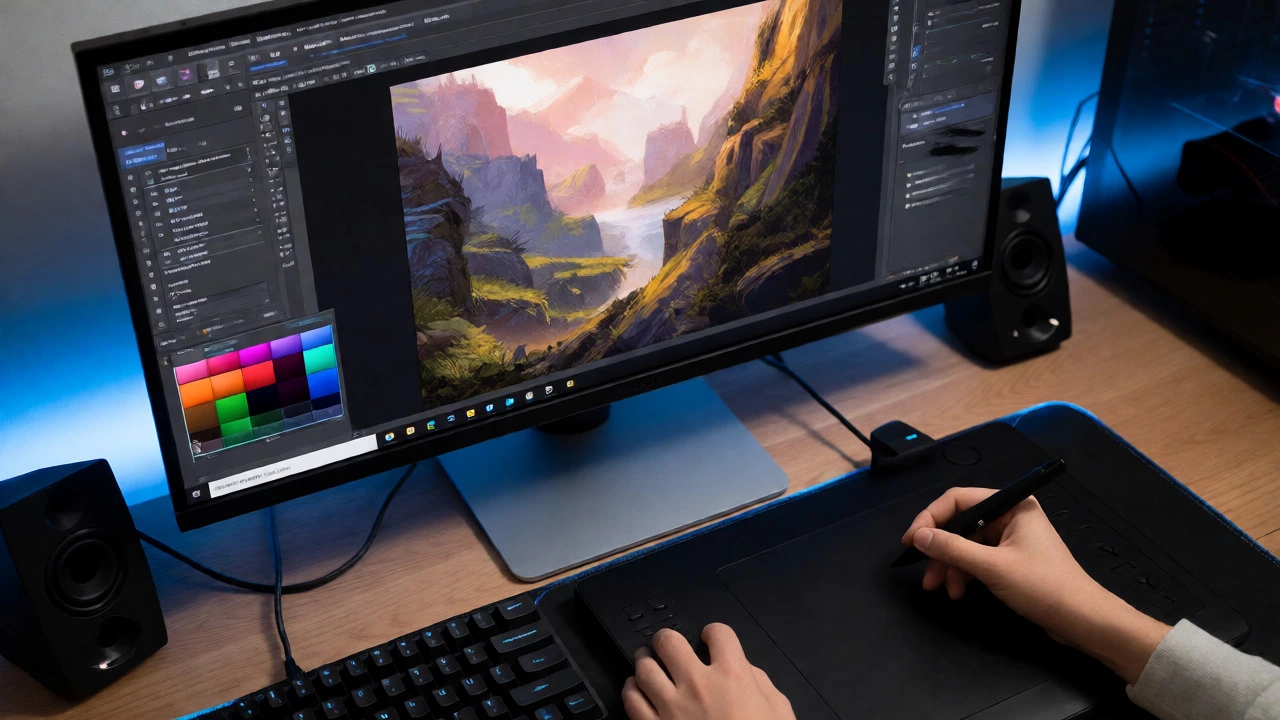
If you work on a computer (Windows, macOS, or Linux), Krita is arguably the best free option available. It’s not just a simplified paint program; it’s a professional-grade raster graphics editor designed specifically for concept artists and illustrators. Unlike GIMP, which tries to do photo editing too, Krita focuses purely on painting.
Why do pros use it? The brush engine is incredibly robust. You can tweak pressure sensitivity, texture, and flow to mimic real oils or watercolors. It supports HDR painting and has a non-destructive filter system. Plus, it handles large canvases without crashing, provided you have decent RAM (8GB minimum recommended).
| Feature | Krita (Free) | Photoshop (Paid) | Clip Studio Paint (Paid) |
|---|---|---|---|
| Brush Engine | Highly customizable, 100+ presets | Industry standard, vast library | Optimized for comics/manga |
| Animation | Frame-by-frame timeline included | Requires separate After Effects license for serious work | Built-in animation tools |
| Interface | Dockable panels, steep learning curve | Familiar to most designers | Clean, specialized for lines |
| Cost | $0 | ~$22.99/month | ~$50 one-time (PC) or subscription |
Pro Tip: Krita doesn’t come with many tutorials out of the box. Search YouTube for "Krita brush settings tutorial" before you start. Spending 20 minutes learning how to configure your main brush will save you hours of frustration later.
Ibis Paint X: The King of Mobile Drawing
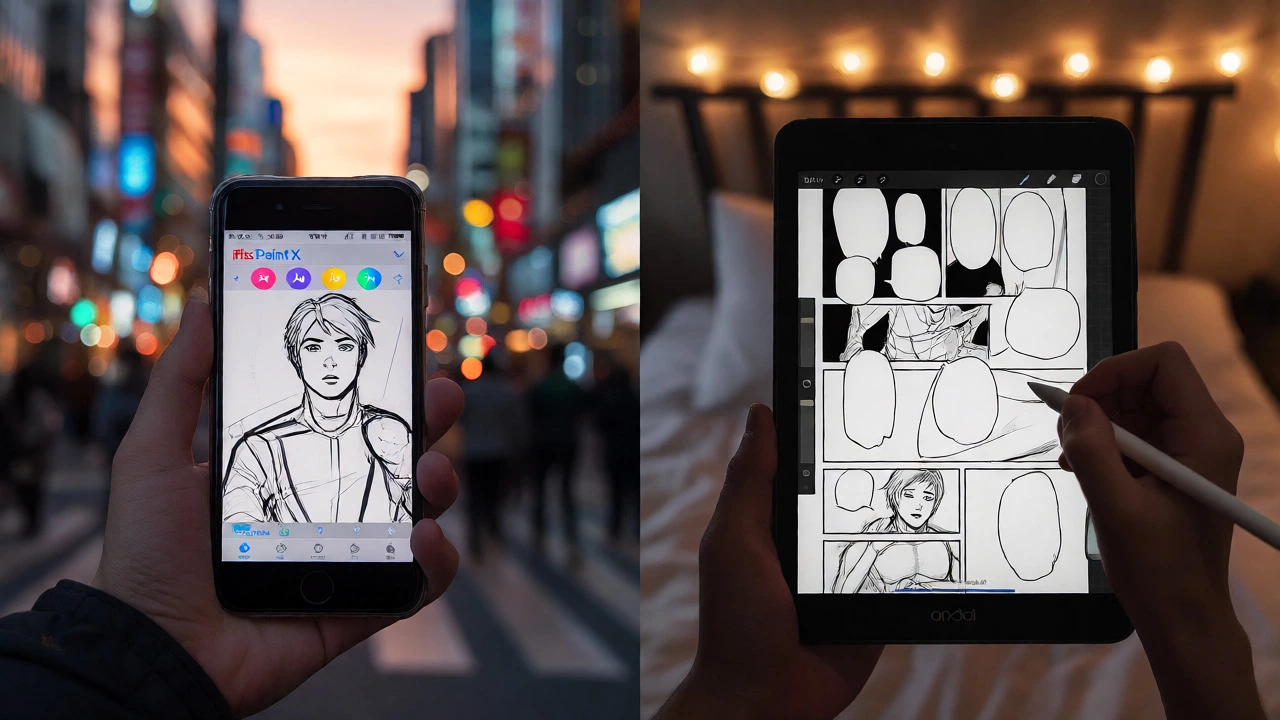
For iPhone and Android users, ibis Paint X dominates the charts. Why? Because it brings desktop-level features to a phone screen. It records every stroke you make, allowing you to export a time-lapse video automatically-a huge plus for Instagram reels or TikTok content.
The interface is cluttered by design, packing over 15,000 free brushes into the app. You can import custom brushes from other artists easily. The stabilization feature is excellent, smoothing out shaky hands when you draw clean lines with your finger or a cheap stylus. However, the free version includes ads. They appear between layers or after saving, which can break your flow. Paying a small yearly fee removes them, but the free tier is perfectly usable if you’re patient.
Sketchbook: Best for Quick Sketches
Sometimes you don’t need layers, blending modes, or color correction. You just need to get an idea down fast. That’s where Sketchbook shines. Owned by Autodesk, it was acquired and then released as a free app for a long time, though recent updates have introduced a paid "Pro" tier. The free version remains simple and distraction-free.
It’s ideal for architects, product designers, or anyone who prefers a minimal UI. The full-screen mode hides all menus, letting you focus entirely on the canvas. The pencil and marker tools feel natural, especially on tablets with palm rejection. If you find Krita too heavy and ibis Paint too busy, try Sketchbook. It’s the digital equivalent of a Moleskine notebook.
MediBang Paint: Great for Comic Creators
If you draw manga, comics, or webtoons, MediBang Paint might be your best friend. It’s lightweight, runs smoothly on older devices, and syncs projects across mobile and desktop via its cloud service. This cross-platform compatibility is rare among free apps.
Its standout feature is the pre-made comic panel templates and speech bubble tools. You don’t have to manually crop panels; the app handles layout for you. It also offers a massive library of free backgrounds and tones (screen tones) commonly used in Japanese comics. While the brush variety is smaller than ibis Paint, the specialized tools for storytelling make it indispensable for sequential art.
GIMP: When You Need More Than Just Painting
GIMP (GNU Image Manipulation Program) is often mentioned alongside Krita, but they serve different purposes. GIMP is a general-purpose image editor, similar to Photoshop’s broader role. It’s great for combining photos, adding text, and doing graphic design tasks alongside painting.
However, GIMP’s painting experience feels clunky compared to Krita. The interface is dated, and setting up a smooth brush requires more tweaking. Use GIMP if you need to edit photos, create banners, or handle file formats like PSD (with plugins). If you only care about digital illustration, stick to Krita. But if you’re a multi-hyphenate creator who edits photos and draws, GIMP covers both bases for free.
How to Choose the Right App for Your Style
Don’t download all five. Pick one based on your primary device and goal. Here’s a quick decision tree:
- Do you draw on a computer?
- Focus on pure painting/illustration? → Krita
- Need photo editing + graphic design? → GIMP
- Do you draw on a tablet/phone?
- Want maximum features and brush variety? → ibis Paint X
- Draw comics/manga with panels? → MediBang Paint
- Prefer simplicity and speed? → Sketchbook
Remember, the tool doesn’t make the artist. Many professionals still sketch in free apps because the barrier to entry is low. You can always migrate your files later. Most of these apps support PNG and PSD exports, so your work won’t get locked in.
Troubleshooting Common Issues
My lines look jagged. Increase the canvas resolution. Aim for at least 300 DPI (dots per inch) for print-ready work. For screen-only art, 72-150 DPI is fine, but higher resolution gives you more room to zoom in without pixelation.
The app crashes on my old phone. Close background apps. Free apps are optimized, but memory leaks happen. Restart the app frequently, or lower the canvas size. In ibis Paint, reduce the number of layers if performance drops.
Where do I find good brushes? Don’t rely solely on defaults. Search DeviantArt or Gumroad for "free [App Name] brushes." Many artists share high-quality packs for free. Importing these can instantly upgrade your style.
Is Procreate really worth paying for?
Yes, if you are deeply invested in iPad art. Procreate’s single-payment model ($12.99 USD) is considered a bargain for its stability and brush engine. However, ibis Paint X and Krita (via emulation or remote desktop) offer 80-90% of the functionality for $0. Start free; upgrade when you hit a specific limitation.
Can I use these free apps professionally?
Absolutely. Many published books, game assets, and commercial illustrations are created using Krita and GIMP. Clients care about the final output quality, not the software logo on your invoice. Ensure you check the licensing terms for any imported brushes or fonts, but the apps themselves allow commercial use.
Which free app is best for beginners?
Sketchbook is the easiest to learn due to its minimalist interface. ibis Paint X is also beginner-friendly but has more buttons to navigate. Krita has a steeper learning curve but teaches you proper digital painting techniques early on, which pays off long-term.
Do free apps save files in PSD format?
Most do. Krita, GIMP, ibis Paint X, and MediBang Paint all support exporting to PSD (Photoshop Document). This ensures you can open your layered files in other software later if you decide to switch to a paid platform.
Are there copyright issues with using free brushes?
Generally, no. Brushes made by other artists for personal sharing are usually licensed under Creative Commons or similar open licenses. Always read the specific license file included in the brush pack. Avoid using proprietary brushes ripped from paid apps unless you bought them.